

Using banners
Banners are a component of Dearnex themes that contain a; title, description, desktop image and mobile image. Banners can be used in sliders or on their own within a theme.
To navigate to banners
- Click Monitor Icon
 on the sidebar
 - Click Banners
Create Banners
- Click Monitor Icon on the sidebar
- Click Banners
- Click Add Banner
- Fill out the details and select images
- Click Create Banner or Create & Close
When you want to add a banner you'll be presented a screen like this:
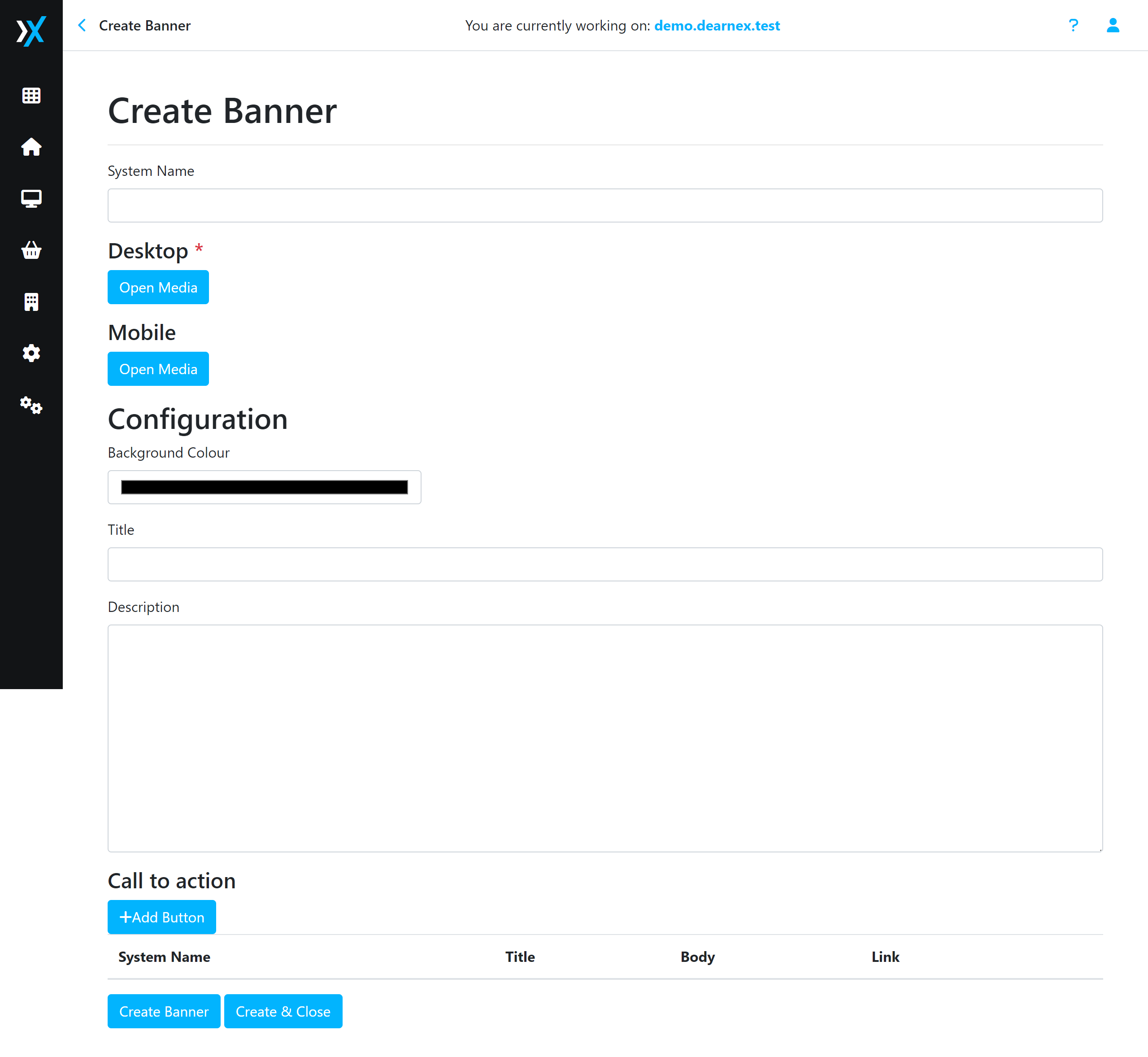
Fig: Example of a blank create banner screen
| Field | Required | Description |
| System Name | No | You can use the system name to name your banner anything you want to easily spot it or search for it in the future, this name is never visible to customers. |
| Desktop | Yes | This is the default image that will be shown to customers for your banner. If you don't have a mobile image it will use the desktop image as well. |
| Mobile | No | This image will be shown on mobile devices. Sometimes you may have a very content heavy desktop banner but on mobile you'll want a much more condensed (likely square), this will automatically be switched out when your website is resized. |
| Background Ground | No | Depending on your theme, if your banner does not stretch or the banner area goes beyond the image, the background colour can be used here. For example you could have 3 banners with backgrounds of: red, green and blue all in the same slider, and the images are all contained within the main website container and the background colour is used outside of the container. |
| Title | No | The title is used on the majority of themes and will show text on the banner, this is usually the big text when view a banner |
| Description | No | The description is usually used for a small tagline or description of the service or product being advertised on the banner, however sometimes the description could also be the title and use markdown (see theme docs). |
| Call to Action | No | Call to actions (buttons) can be added to a banner and these are usually loaded below the description, not all banners support buttons so make sure to check the theme docs. |
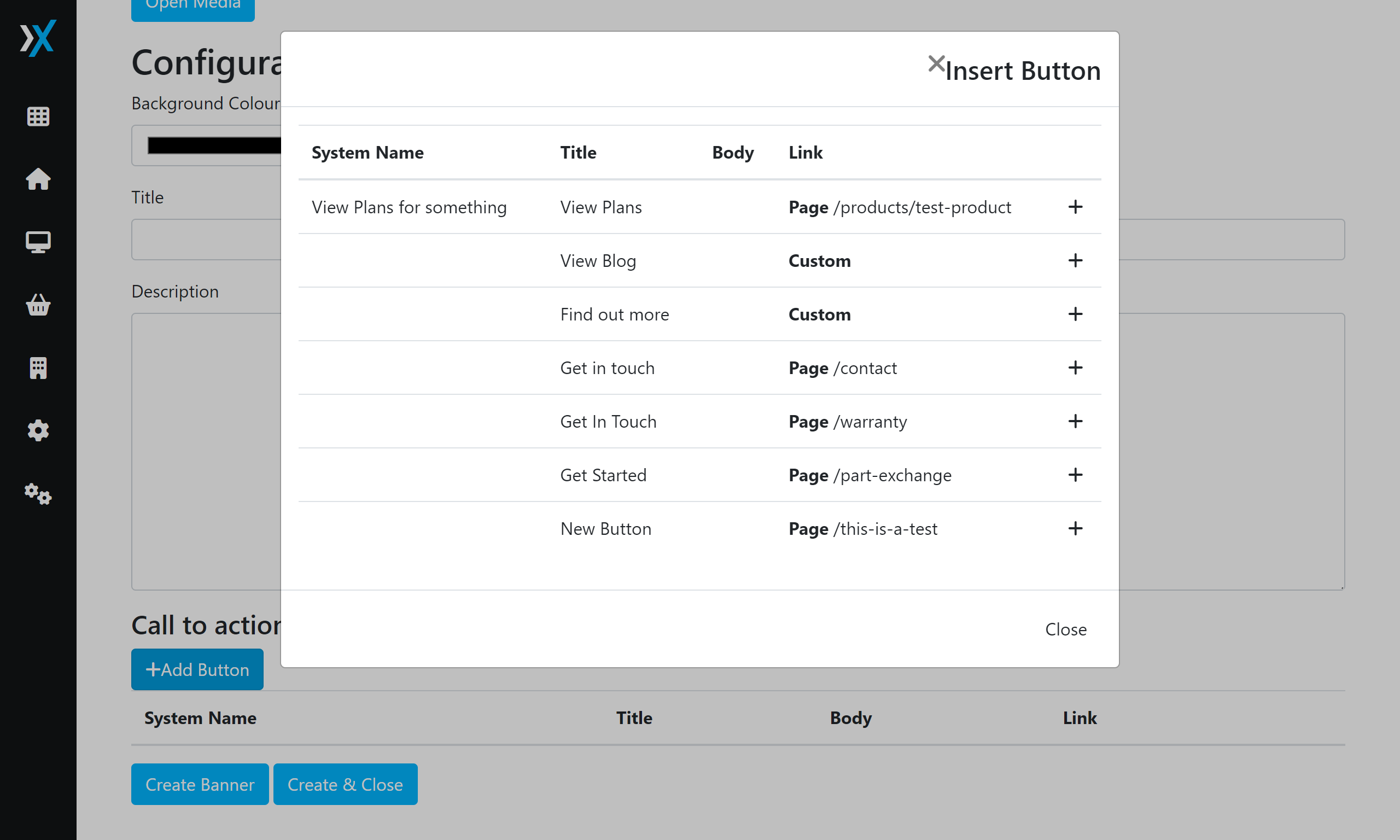
When adding call to actions, you will be presented with this screen:
Click the + next to the button you want to assign (note, some banners may have a limit on the number of buttons they show, check your theme docs to find out).
Example of a button after adding it to your banner.
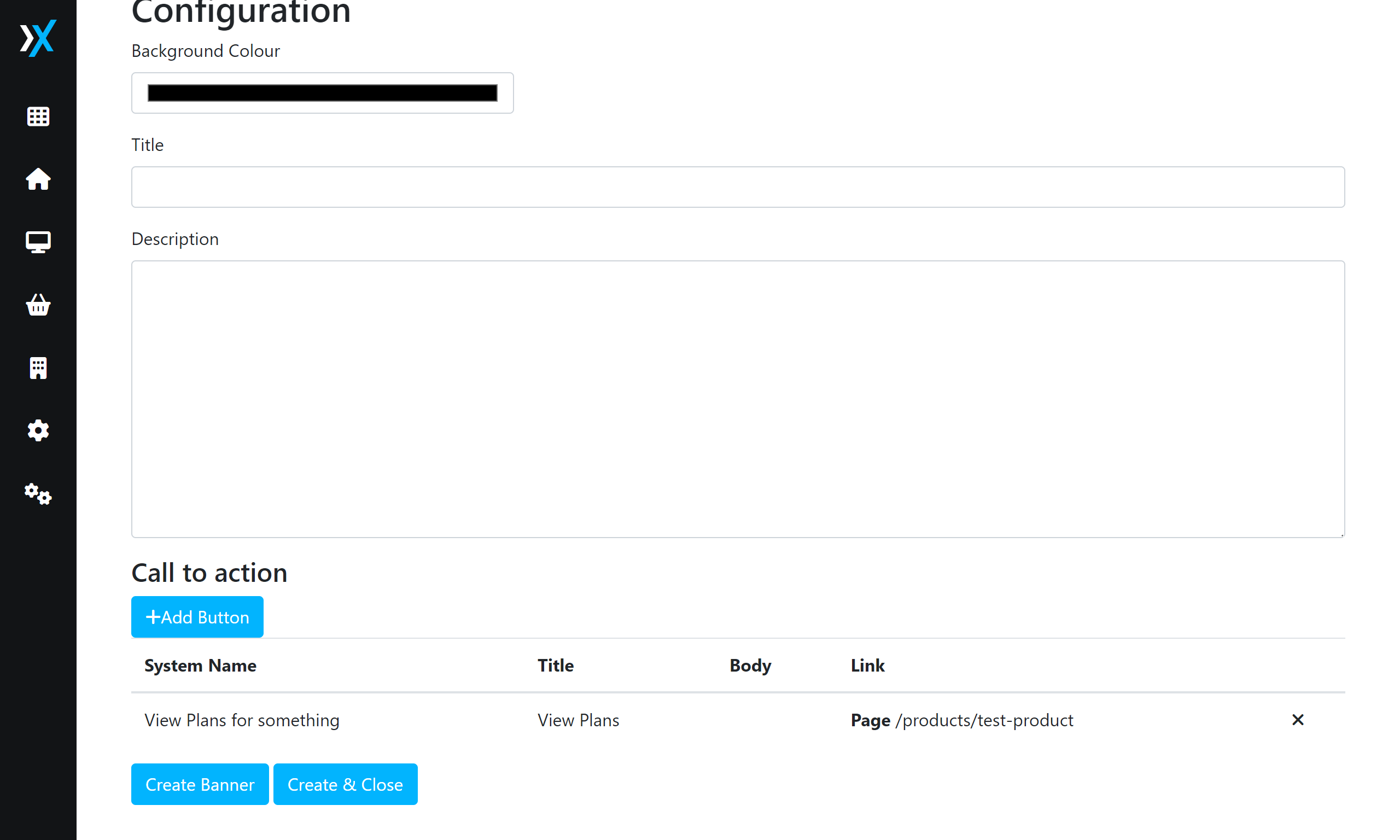
After adding your button, if you added it by mistake you can click the x and remove the button.
Note: If you want to re-order your buttons you must remove them and re-add them in the order you wish to use them.
Updating Banners
Updating banners works the exact same as creating.
- Click Monitor Icon on the sidebar
- Click Banners
- Find the banner you want to edit and click Manage
- Update the details or images
- Click Save Banner